Connect Claude, ChatGPT, Cursor or any MCP client
PocketAdmin is an MCP server. That means an AI app you already use, such as Claude, ChatGPT, Claude Code or Cursor, can look at your devices through PocketAdmin.
You choose which devices it can reach. Every change it asks for waits for your Face ID by default.
New to PocketAdmin? Why use it as your MCP server
Note: You need PocketAdmin Pro (you can try it free for a week), or to be in a team that has a Team plan.
It takes about five minutes. You make a one-time code in PocketAdmin, add PocketAdmin in your AI app, then type the code in.
On this page
Set up PocketAdmin with Claude
Step 1 Open Connect an App
- Open PocketAdmin and tap the AI tile.
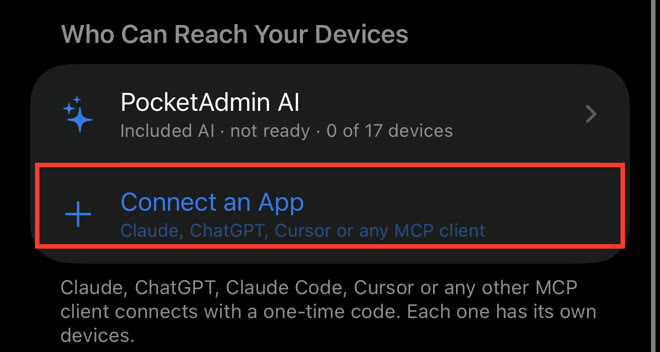
- Under Who Can Reach Your Devices, tap Connect an App.
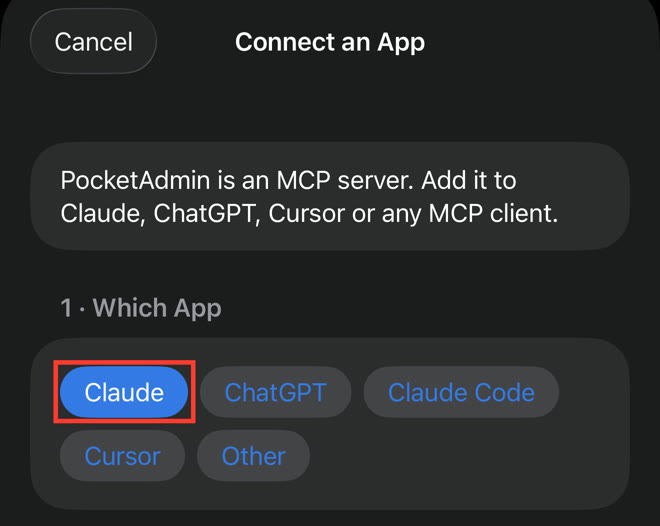
- Under 1 · Which App, tap Claude.
Note: If you've connected an app before, PocketAdmin asks This Is. Choose A new app or account. You can type a name, such as "Personal", to tell two accounts apart.
Step 2 Make a one-time code
- Read the short note under 2 · Make a One-Time Code. It says where the app's answers go. See Privacy.
- Tap Make a Code.
- Look at your iPhone for Face ID. (On an iPad, use Touch ID. Without either, use your passcode.)
A six-digit code appears, with a countdown such as Works once · 9:58 left.
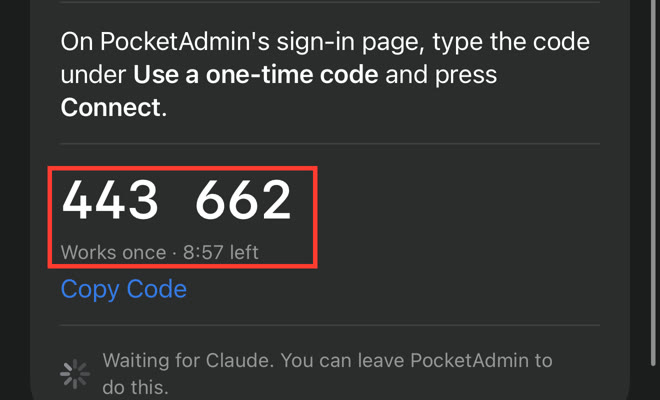
Note: The code works once, for 10 minutes. It stays valid if you leave PocketAdmin, so you can switch to Claude on this same iPhone.
Step 3 Copy your PocketAdmin address
- Tap Copy Address.
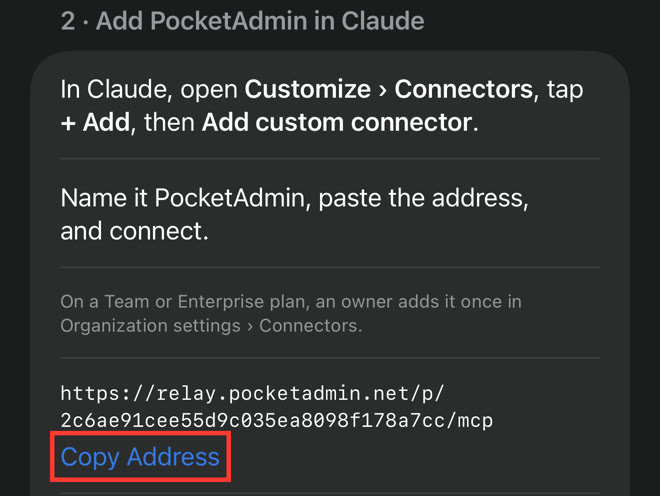
Note: If Claude is on a Mac signed in to your Apple ID, you can usually paste the address there straight away. On another computer, send the address to yourself, for example in an email.
Step 4 Add PocketAdmin in Claude
- Open Claude and sign in.
- Click Customize, then Connectors.
- Click Add, then Add custom connector.
- Enter these details:
| Setting | Value |
|---|---|
| Name | PocketAdmin |
| MCP Server URL | the address you copied in Step 3 |
- Click Add.
- Click Connect next to PocketAdmin.
A page called Connect to PocketAdmin opens.
Note: On a Claude Team or Enterprise plan, the plan's owner adds PocketAdmin once, in Organization settings › Connectors.
Step 5 Type the code
- On the Connect to PocketAdmin page, find Or use a one-time code.
- Type the six digits from your iPhone in the Code box.
- Click Connect.
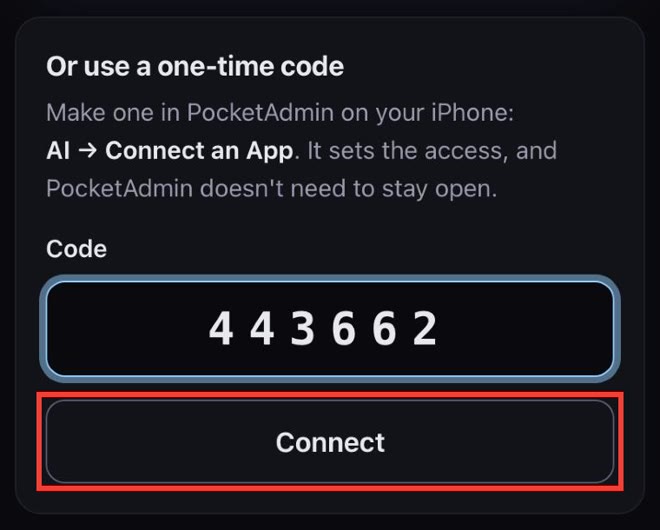
Note: The code isn't copied to your other devices. If the page is on a computer, read the code off your iPhone. If the page is on this iPhone, go back to PocketAdmin, tap Copy Code, and paste it.
The page sends you back to Claude.
Step 6 Check that it worked
You're connected when:
- PocketAdmin shows Claude is connected with a green tick.
- PocketAdmin is listed under Claude's connectors.
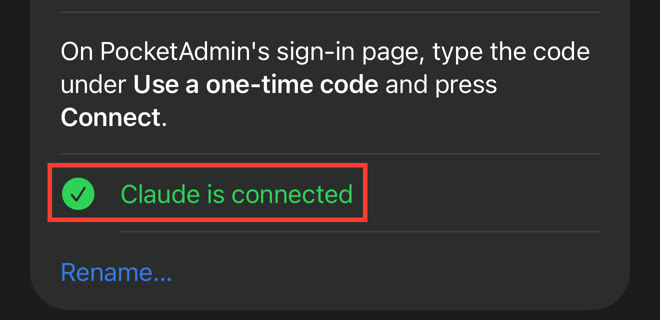
Note: If you connected while PocketAdmin was closed, that's fine. PocketAdmin picks up the new app the next time you open it.
Next, choose what Claude can reach. See Choose what it can reach.
Set up PocketAdmin with ChatGPT
Step 1 Make a code and copy your address
- Follow Steps 1 to 3 in the Claude section, but tap ChatGPT under 1 · Which App.
Step 2 Turn on developer mode in ChatGPT
- Open ChatGPT and sign in.
- Click your profile picture, then Settings.
- Select Plugins, then Developer Mode.
- Turn on Developer mode.
Step 3 Add PocketAdmin in ChatGPT
- Click Plugins in the sidebar.
- Click +, then Create app, then Create MCP app.
- Enter these details:
| Setting | Value |
|---|---|
| Name | PocketAdmin |
| MCP Server URL | the address you copied |
- Tick I understand and want to continue.
- Click Create.
Note: ChatGPT shows this warning for any app you add yourself. PocketAdmin reaches only the devices you choose, and changes wait for your Face ID by default.
- Click Sign in with PocketAdmin.
A page called Connect to PocketAdmin opens.
Step 4 Type the code and check it worked
- Follow Steps 5 and 6 in the Claude section.
You're connected when PocketAdmin shows ChatGPT is connected with a green tick.
Claude Code, Cursor and other apps
Claude Code
- Follow Steps 1 and 2 in the Claude section, but tap Claude Code.
- Tap Copy Command.
- Paste it into a terminal on your computer and run it.
- In Claude Code, type
/mcpand choose pocketadmin. - Sign in on the Connect to PocketAdmin page with your code, as in Step 5 of the Claude section.
Cursor
- Follow Steps 1 and 2 in the Claude section, but tap Cursor.
- Tap Copy Setting.
- In Cursor's settings, under MCP, add it to mcp.json, beside any servers already there.
- The first time Cursor connects, it opens the Connect to PocketAdmin page. Type your code there.
Other apps
- Follow Steps 1 to 3 in the Claude section, but tap Other.
- In your app, add PocketAdmin as a remote MCP server (Streamable HTTP), with the address you copied.
- Sign in on the Connect to PocketAdmin page with your code.
Choose what it can reach
After the app connects, the same sheet asks 3 · What Claude Can Reach. It shows your app's name.
Step 1 Pick a starting point
- Choose one:
- Same as PocketAdmin AI gives the app a copy of the devices PocketAdmin's own AI can reach, at the same levels. This is chosen for you.
- Choose Devices… starts from nothing, so you pick each device yourself.
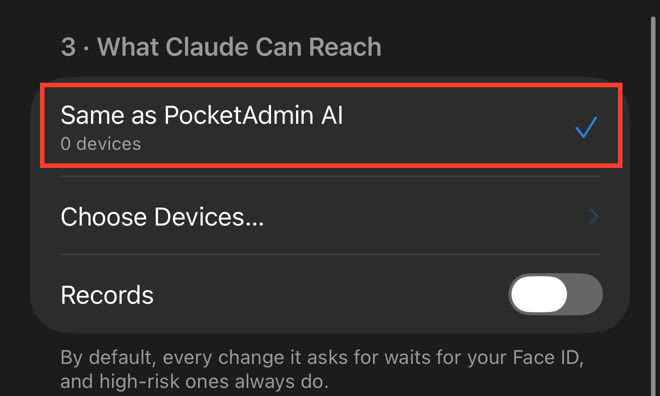
Note: The copy is made once. After that, the app's list is its own: changing it never changes PocketAdmin AI's list, and the other way round. See What Off, Look and Look & Change mean.
Important: The app can ask for changes only on devices set to Look & Change. Every change waits for your Face ID by default.
Step 2 Decide about Records
- Records is a switch. It starts the way PocketAdmin AI has it.
- On: the app can read what PocketAdmin keeps about every device (details, logs, saved configurations) and the text of your Files, even for devices it can't reach.
- Off: it can't. Leave it off if you're not sure.
Note: Saved passwords and keys are never part of Records.
Step 3 Decide what happens when you leave PocketAdmin
- Under 4 · When You Leave PocketAdmin, Keep It Reachable is on.
- On: the app can still reach your devices while you're in other apps, as long as PocketAdmin's small status window is up. It uses some battery, and iOS can still stop background work.
- Off: the app reaches your devices only while PocketAdmin is open on screen.
- Tap Done.
The app now has its own row under Who Can Reach Your Devices, such as "Claude · 4 of 9 devices · reachable". Tap it any time to change its devices, rename it or remove it.
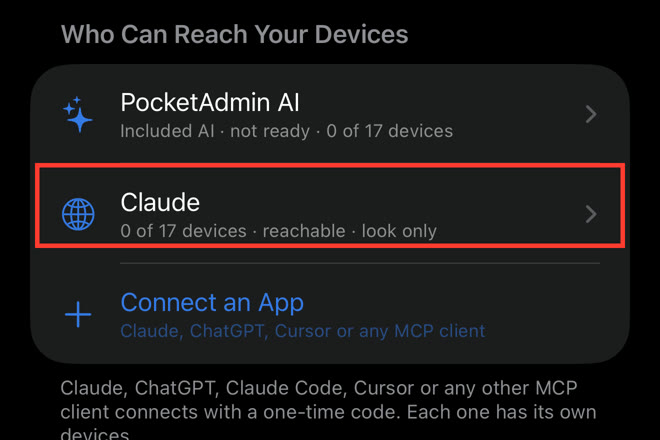
Note: A connected app works on one site at a time, the one PocketAdmin is showing. If it needs a device at another site, your iPhone shows Change Site and asks you first. See Devices at another site.
Approve on your iPhone instead of a code
The Connect to PocketAdmin page has a second way in, Approve on your iPhone. It works only while PocketAdmin is open on your iPhone.
Step 1 Ask your iPhone
- On the sign-in page, under Approve on your iPhone, choose Look only or Look & Change.
- Click Ask my iPhone.
The page shows a three-digit number, for example Your iPhone will show: 779.
Step 2 Check the number and approve
- On your iPhone, a card called Connect an App comes up. It says which app wants to use PocketAdmin.
- The card asks Your sign-in page shows 779? Check that it's the same number.
- If it matches, tap Approve.
- Look at your iPhone for Face ID.
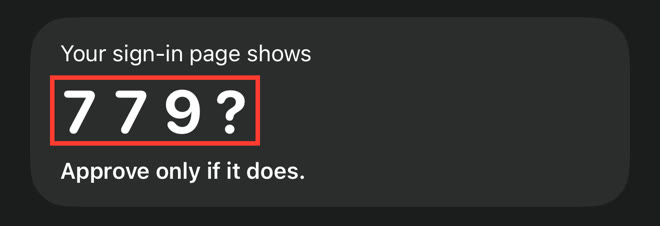
Warning: If the number is different, or you didn't just start connecting, tap Deny. Someone else may be trying to connect.
Note: You have about two minutes to answer. After that, click Ask my iPhone again.
Note: If you've connected the same app before, the card first asks Which Account Is This?: A new app (it starts with PocketAdmin AI's devices) or, for example, Claude, signing in again (it keeps its settings). Pick "signing in again" only if it really is that account. A coworker signing in to the same connector looks just the same.
Remove an app
- Tap the AI tile.
- Under Who Can Reach Your Devices, tap the app's row.
- Tap Remove Claude… (it shows your app's name).
- Tap Remove.
The app is signed out at once and can't reach anything until you connect it again.
Troubleshooting
Problem: The sign-in page says "That code isn't right or has run out."
Cause: A code works once, for 10 minutes.
Fix: Make a new code: tap the AI tile, then Connect an App.
Problem: PocketAdmin says "Couldn't reach PocketAdmin's relay."
Cause: Your iPhone is offline.
Fix: Check your iPhone has Wi-Fi or mobile data, then tap Make a Code again.
Problem: PocketAdmin says "This iPhone's clock is about 5 minutes ahead…"
Cause: The relay checks the time.
Fix: On your iPhone, open Settings › General › Date & Time and turn on Set Automatically.
Problem: The sign-in page says "PocketAdmin isn't open on your iPhone."
Cause: Ask my iPhone works only while PocketAdmin is open.
Fix: Type the code under Or use a one-time code instead, or open PocketAdmin and click Ask my iPhone again.
Problem: The number on the iPhone card doesn't match the sign-in page.
Cause: Someone else may be trying to connect.
Fix: Tap Deny, then start again from your app.
Problem: Claude on a Team or Enterprise plan can't add the connector.
Cause: Only the plan's owner can add connectors.
Fix: Ask the owner to add PocketAdmin once, in Organization settings › Connectors.
Problem: The app connected, but says PocketAdmin isn't open.
Cause: A connected app reaches your devices through PocketAdmin on your iPhone.
Fix: Open PocketAdmin when your iPhone's notification asks. If you open it within about a minute and a half, the request goes through; otherwise, ask again.
More fixes: Troubleshooting: an app won't connect.